Showing posts with label Google. Show all posts

Sunday, March 4, 2012

2 How Biggest websites looked at their launch

Click on the images for Large Preview


>


0 Apple V/S Android the cold war

[Click on the images for Large Preview]


Saturday, March 3, 2012

0 First Social Network app “Renren” Released for Windows 8

Its been a couple of days for the Windows 8 consumer preview release and the Windows Store which features Metro apps which run on Windows 8 Consumer Preview.
We have been seeing some quality apps making their way to the Windows Store, with the likes of Photobucket and Kobo reader apps and some Metro based gaming titles featuring in the Windows Store upfront.But there wasn’t any social networking app for taking for the Consumer Preview users,Until now.The first Social Networking app to make it to the Windows Store is “Renren HD” app from the Chinese Social Networking Site Renren,.
Renren HD is designed to be fully-integrated with Windows 8, a generational change on Microsoft’s flagship operating system. Through “share contract”, a range of content from different applications can be shared at a single click, including web pages, pictures and videos. Customized for Windows 8, which focuses on integration with social networks and optimized for tablet usage, Renren HD has adopted features such as tiled Metro-style user interfaces and creative content delivery, resulting in a significantly enhanced user experience.
With the flurry of apps coming to Windows Store even before the official Final release of Windows 8 which is expected to be released in the second half of the year,it means that by the time the final version comes the store will have a strong app base for the consumers who will buy the final version as well as the upcoming tablets and laptops.

Checkout the Press Release Here

Friday, February 24, 2012

0 How The GOOGLE Goggles Work? Surf the net, emails, make Calls - with your glasses

If you’re the sort of person who spends ages looking for your mobile phone, Google may have the answer.

And the solution will be right in front of your eyes – literally.

The technology giant is close to launching a pair of futuristic glasses that would deliver all the services of a smartphone straight to the wearer’s eye.


Google glasses would deliver the smartphone experience straight to your eyes

Featuring a miniature display on one lens, the hi-tech specs allow users to surf the internet or deal with text messages and emails without lifting a finger.

The screen is controlled with a ‘mouse’ which is moved simply by tilting your head. And should you still wish to actually talk to someone, it is believed the glasses will let you make calls using an in-built microphone.

Reports suggest the device, which would revolutionise the smartphone market, could be available by the end of this year costing less than £380 – making it cheaper than Apple’s iPhone.

Users would also be able to see through the lenses as normal and go about their daily business, then with a flick of the head activate the display and start surfing.


It has been reported the glasses will resemble Oakley's Thump sunglasses
The glasses would use the same Google operating system that powers Android smartphones and tablets and would connect to the internet through 3G or next-generation 4G mobile networks.

They would also be equipped with GPS mapping technology and motion sensors, as well as a camera. It brings the prospect that wearers could be given information instantly on the buildings they are looking at, on nearby landmarks or friends who are in the area.

But the devices will also bring new potential for advertisers to reach users in ever more personal situations, such as in a lift, a restaurant or relaxing on their sofa.

The glasses are being worked on at the web giants headquarters in Mountain View, California

Seth Weintraub, from the 9 to 5 Google blog, revealed clues to how the glasses would work. ‘The system currently used is a head tilting to scroll and click,’ he said. ‘We are told it is very quick to learn and once the user is adept at navigation, it becomes second nature and almost indistinguishable to outside users.

‘These glasses, we heard, have a front-facing camera used to gather information and could aid in augmented reality apps. The heads-up display is only for one eye and on the side.’

The glasses are apparently being developed in Google’s top-secret research laboratory in Mountain View, California. Apple is also thought to be developing pioneering technology, such as smartphones that can be worn as watches or sewn into clothing.


Monday, January 16, 2012

2 How To Set Up Google Adsense In Your Website / Blog

Google AdSense

By becoming a publisher on Google AdSense, you make your website available to the largest pool of advertisers on the planet.Google will gather data on your website and contextually display advertisements from a pool of thousands of possible advertisers.

To sign up for Google AdSense, follow these steps.


Step 1: Preparing to Register

In order to sign up for Google AdSense, you first need to have a website. The website should be well designed and have plenty of original content. You only need to sign up once for AdSense. Once you have an AdSense account, you can use it for any and all websites you own.

However, in order to actually get an AdSense account, you need to have one website for Google to look at and approve.Use your best website for the signup process. In a way, this is like putting your best foot forward.

Show Google that your websites are of high quality and that their publisher network will be better off with your website there. You should also read over all the AdSense policies and terms.

Webmasters who unwittingly violate the terms risk getting their accounts suspended.

It only takes about 20 minutes to read over all the rules; well worth the time investment to reduce the risk of accidental suspension.

Start the application process at:
https://www.google.com/adsense/


Step 2: Specify Website URL
Specify the website that you want Google to review. Specify also the primary language of the website. Check the two boxes that say you won’t incentivize clicks and won’t place ads on pornographic websites.

Step 3: Add Contact Information
Add your contact information. Make sure your name and billing address are 100% correct, as that’s the name and address the checks will be written to.
The account type will tell Google whether to write the checks out to a company name or to a personal name.
Step 4: Agree to Terms and Submit
Agree to the terms and conditions and click submit to submit your site to Google for review.
Then you wait. If Google decides that your website is of sufficient quality to be on their network, you’ll soon have a working AdSense account. If not, you’ll receive notice that your site was denied.
Note that even when you do get your AdSense account, you won’t be paid out until you reach your first $100.
When you reach your first $100, that’s when the “real” approval process happens. Every site that reaches the $100 mark is again reviewed by a real human.
If Google doesn’t find your traffic acceptable at the $100 mark, your account will be disabled and the $100 won’t be paid out.
On the other hand, if you get paid your first $100, that means you’ve passed all of Google’s hurdles and now have a fully fledged AdSense account.
That said, once you have your initial AdSense account, how do you actually use it? Here’s how.
Setting Up Ads in Google AdSense
Step 1 – Click My Ads, New Ad Unit
To start the ad creation process, go to the “My ads” tab and click “New ad unit.”
A drop down box for creating your new ad will appear.
Step 2 – Name, Size and Ad Type
Name your ad. Select its size and choose whether you want text only or images and rich media as well..
A drop down box for creating your new ad will appear.
Step 2 – Name, Size and Ad Type
Name your ad. Select its size and choose whether you want text only or images and rich media as well.
Step 4 – Channels and Tracking
Choose the channels you want to associate with this ad. Channels are properties that you can “tag” on to ad units. Later on, you can search by channels and see how each channel and groups of channels performed.
For example, if you tagged all your red ads with the channel “Red”, you could later sort for all the red channels and see how they all performed individually and as a group.
Select the channels you want to tag your ads with here. If you haven’t created any channels, just click “Create new custom channel” to create a channel on the spot.
Step 5 – Submit and Get Code
Click submit and get code to save all your changes and generate the HTML code to place the ad unit on your site.
Copy and paste this code to your site. Give it 10-20 minutes before expecting the ad to appear.
That’s all there is to it! You’ve now registered for AdSense and created your first AdSense ad.
Place up to 3 ad units on any given page to receive the maximum return per visitor.


Monday, November 28, 2011

0 How to backup your data stored within Google Services

Google and various Google services are already an eternal part of our online world. Internet is full of articles like”A day without Google”,”A month without Google services”,”Top 10 alternate to Google services” and much more. With our best memories in the form of pictures stored in Picassa albums, Our winning moments Videos stored in YouTube, Our updates posts in Google plus, Google buzz,Our business contacts stored at Gmail etc, it would be no less than a nightmare if one day all of our data somehow gets lost.
Google offers a great feature to back up and export all of our data stored in Google servers. The best part of the Google Takeout is that it offers you to get your data in open formats, so it’s easy to import to other services quickly.


The Data Liberation group is the team inside Google that made it possible for us to make our Google data portable. Data portability has long been a war between Facebook and Google. Facebook also allows its users to take their data in zip format but this isn’t a format third-party websites can use. Google offers you to select the services and the data that you want to download thus giving you more freedom.

To backup your data using Google Takeout just login at www.google.com/takeout and select the services that you want to back up and click on Create Archive the zip would be created and would be ready for download in less than a minute.

1 Transfer your Facebook Photos to Google+

If you would have heard about the good news, you know that Google + is no more an invite only havoc! With Google+ opening to all, you might want to move on permanently to Google+, and in doing so your first step might be to transfer all your photos.

 So here I am with a new productive post, detailing you about how you can shift all your photos from Facebook to Google+.


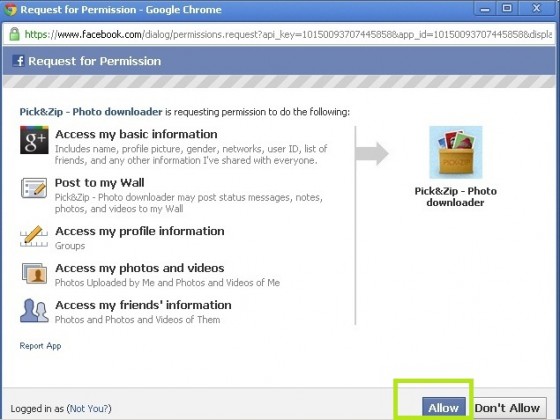
So how do we begin, open each photo on facebook, save it on your desktop and then upload on your Google+ account? No, for sure! There’s a better solution known asPicknZip.


You can follow these steps to get your photos transferred:


-Head over to PicknZip.com


-On top you’ll find “Login with Facebook” button, click it and allow to login to PicknZip with facebook

-Once you are logged in you’ll get option to select images in following categories-
 

Creative Brains Copyright © 2011 - |- Template created by O Pregador - |- Powered by Blogger Templates